

- Create a Binance account with a 20% fee discount
- Create a subaccount for clean tax separation and independent tracking
- Generate a Spot Trading API key with the correct permissions
Before you can create subaccounts or API keys, Binance requires at least two security methods on your account: email verification (always required) plus one additional method such as Google Authenticator, SMS authentication, or a security key (YubiKey, etc.). Enable a second method under Account → Security in your Binance dashboard before continuing.
Create your Binance account
Register your Account to start trading
Use the unCoded Referral Link to create your Binance account.Registering through this link gives you 20% less in trading fees on Binance. It also reduces the unCoded profit share from 30% to 20%. Dont worry if you already have an account - check out the unCoded Licensing FAQs to learn how to reduce your fees anyway.On the sign-up page, choose your preferred method:
- Email — enter your email address and create a secure password.
- Phone number — use your phone number to register.
Complete KYC verification
Complete the Know Your Customer (KYC) process to enable full trading capabilities:
- Provide a government-issued ID (passport, driver’s license, etc.).
- Upload a selfie for identity verification.
- Submit proof of address if your region requires it.
With your Binance account successfully created and verified, the next step is to configure it properly for unCoded so the bot can trade securely and efficiently.
Create a Binance subaccount
A subaccount separates unCoded’s trading activity from your personal trades, making tax reporting and performance tracking cleaner.Open Account Management
Log in to your Binance account on the web and go to your dashboard. In the left-hand menu, select Sub-Accounts → Account Management.
Create the subaccount
Click Create Sub Account and choose an account type: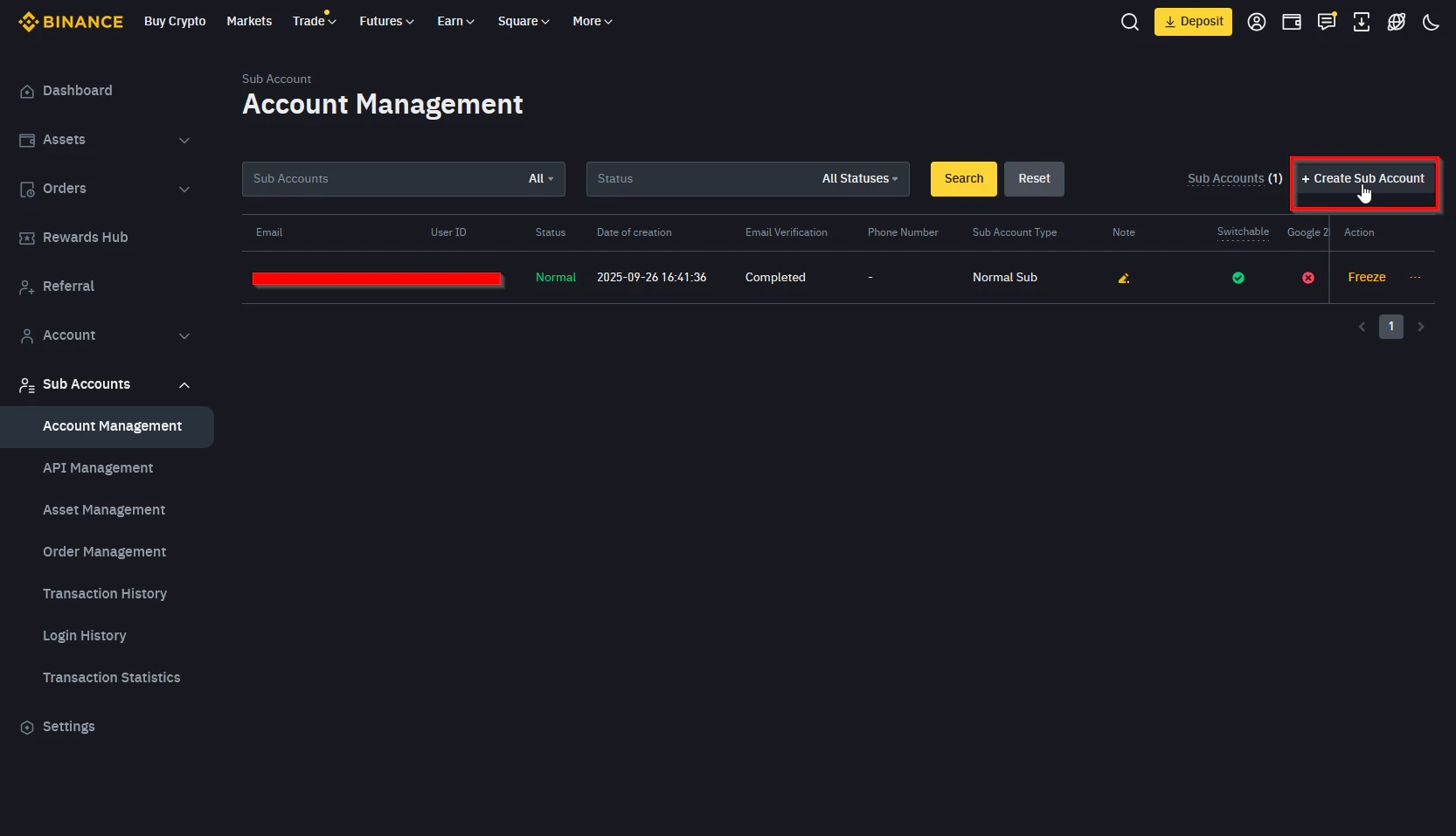
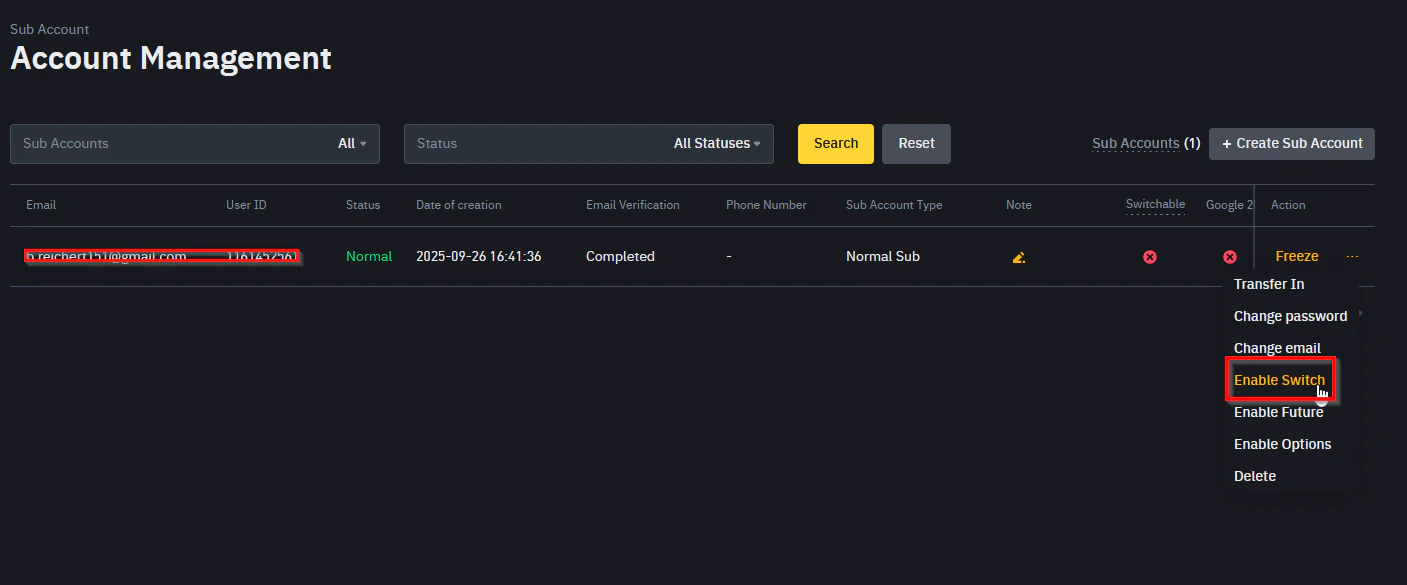
- Email (recommended) — creates a dedicated login for the subaccount.
- Virtual email — no separate login required. For Developers only!
Fund the subaccount
In the Sub-Accounts dropdown, go to Asset Management. Find your new subaccount row and click Transfer In.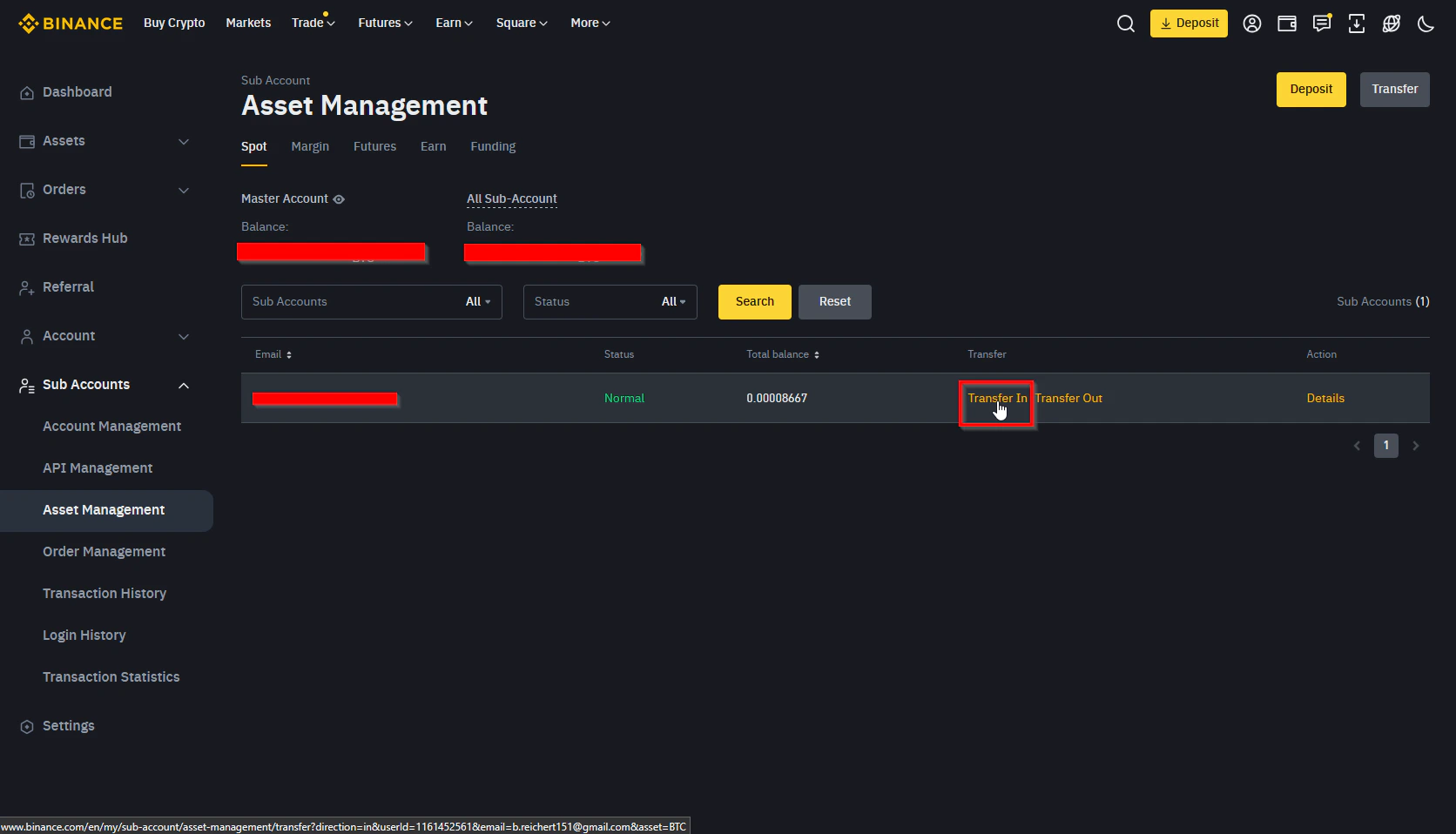
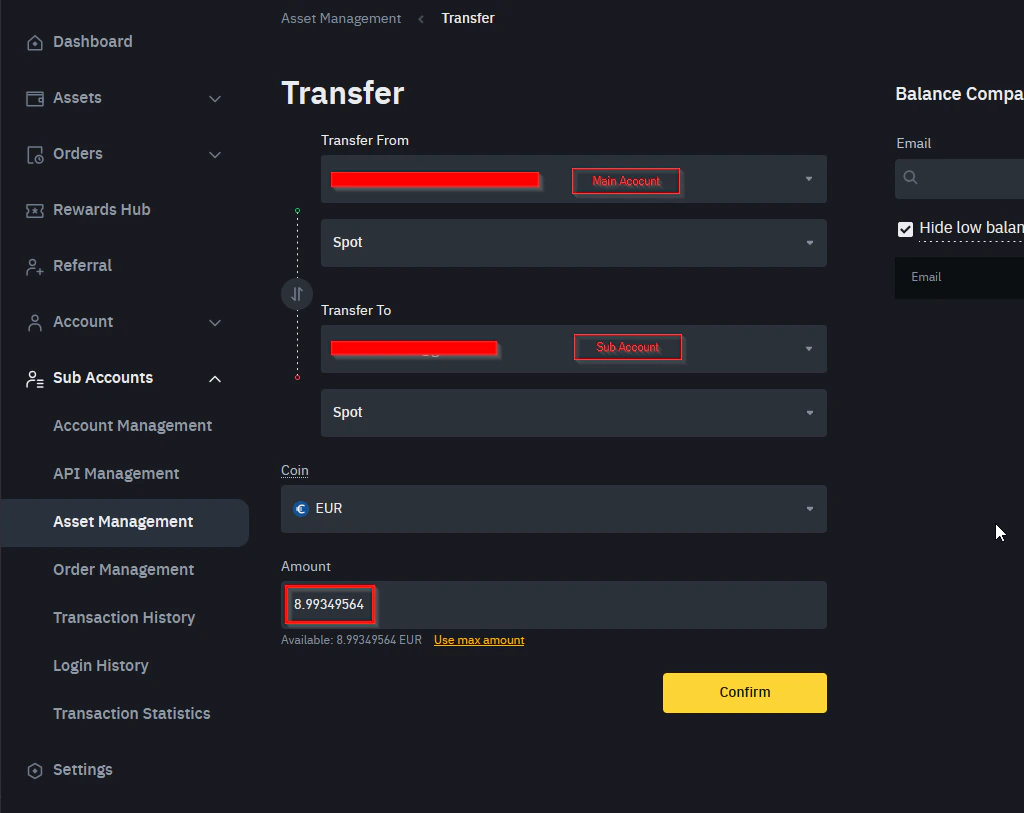
- USDC — recommended for users within the EU (stable and widely supported).
- FDUSD — recommended for users outside the EU; Binance offers zero trading fees on FDUSD pairs.
- BNB — keep at least ~$50 worth. Binance uses BNB to pay fees and gives a 25% discount on every trade.
Create the Spot Trading API key
Open API Management
In your Binance dashboard, go to API Management.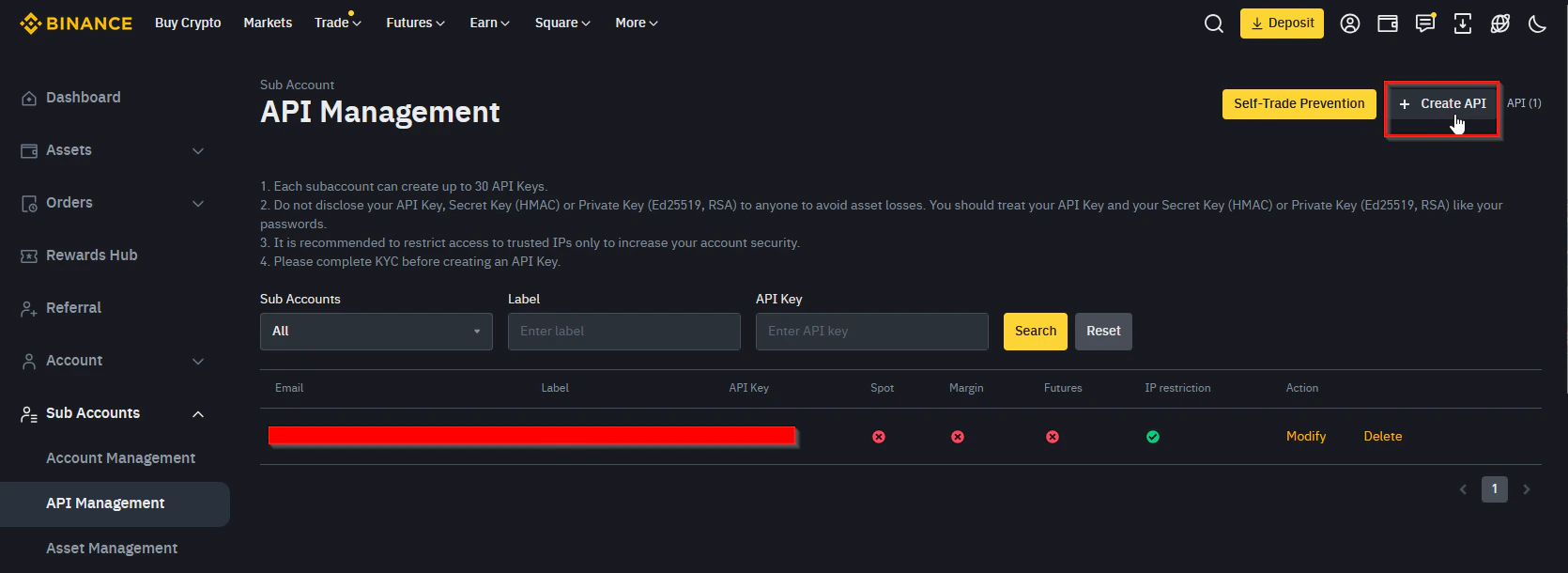
Create a system-generated API key
Click Create API and choose System Generated API Key. Label the key (e.g., 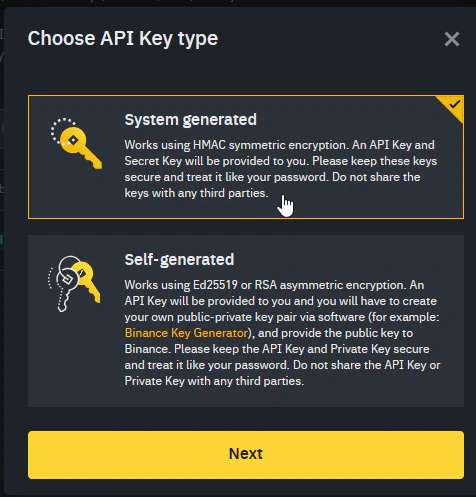
unCodedBot), then confirm using your security methods — Binance will always require email plus one additional method (Google Authenticator, SMS, etc.).Configure API permissions
Set the following permissions on the key: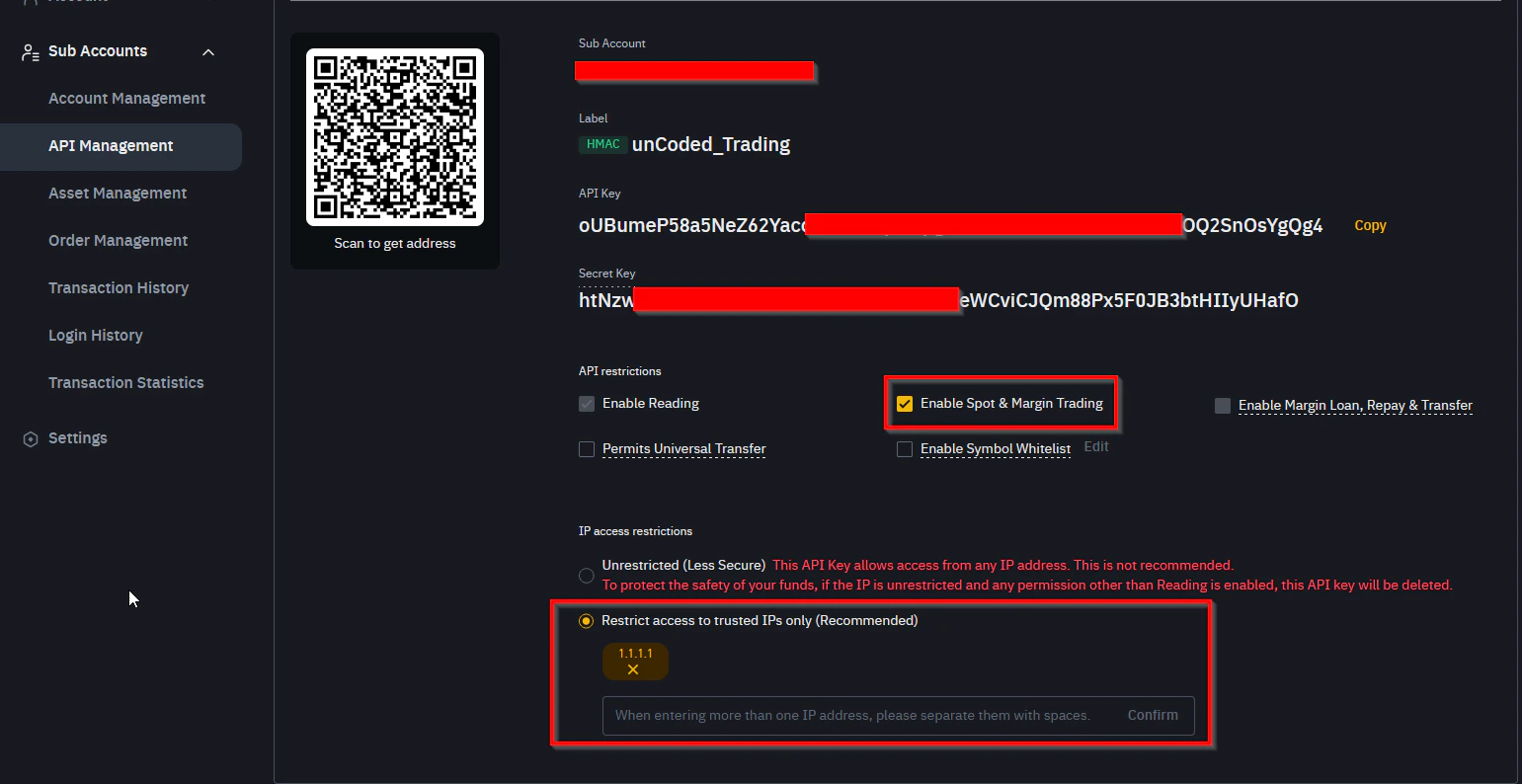
- Read Info — enabled
- Enable Spot & Margin Trading — enabled
Save your API credentials
Copy the API Key and Secret Key and store them somewhere safe.
The Secret Key is shown only once. If you leave the page before copying it, you will need to delete the API key and create a new one. Do not share these credentials with anyone. Delete any temporary file you use to store them once the setup is complete.
Once your subaccount is funded and your API key is saved, you are ready to set up your unCoded account. Continue to Create your unCoded account.